Manage Courses (List, Create, Edit)
This feature is for SA, ML, CA, Trainer
BrainFit HQ has its own rebuilt Courses screen at HQ > LMS > Courses, alongside the legacy ACP course screens. It covers the same course/topic/media management as before, in the new Tailwind interface.
Course list
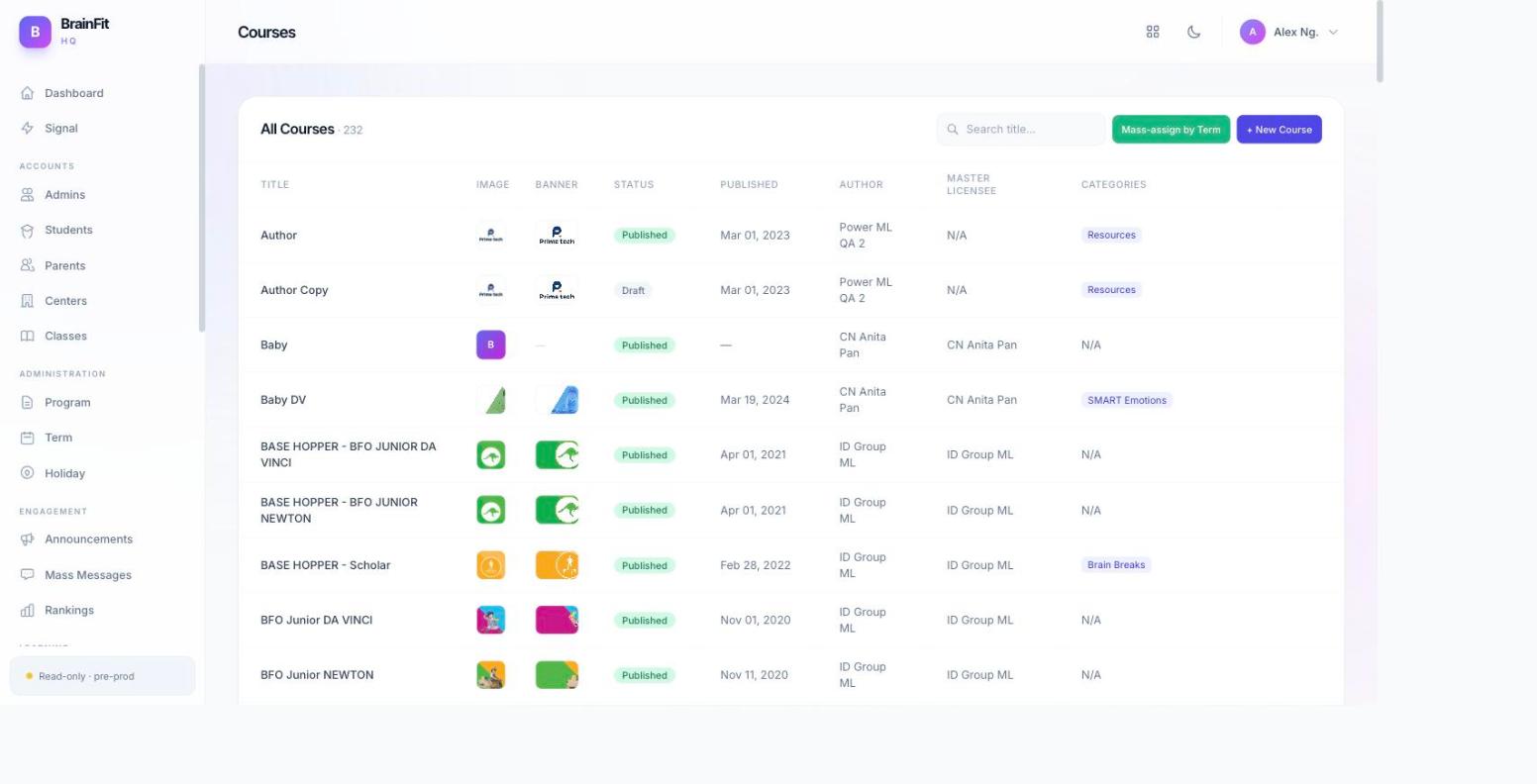
- Navigate to HQ > LMS > Courses. The list shows every course with quick actions — Edit, Assign, and Mass-assign by Term — plus a + New Course button.
Create a new course
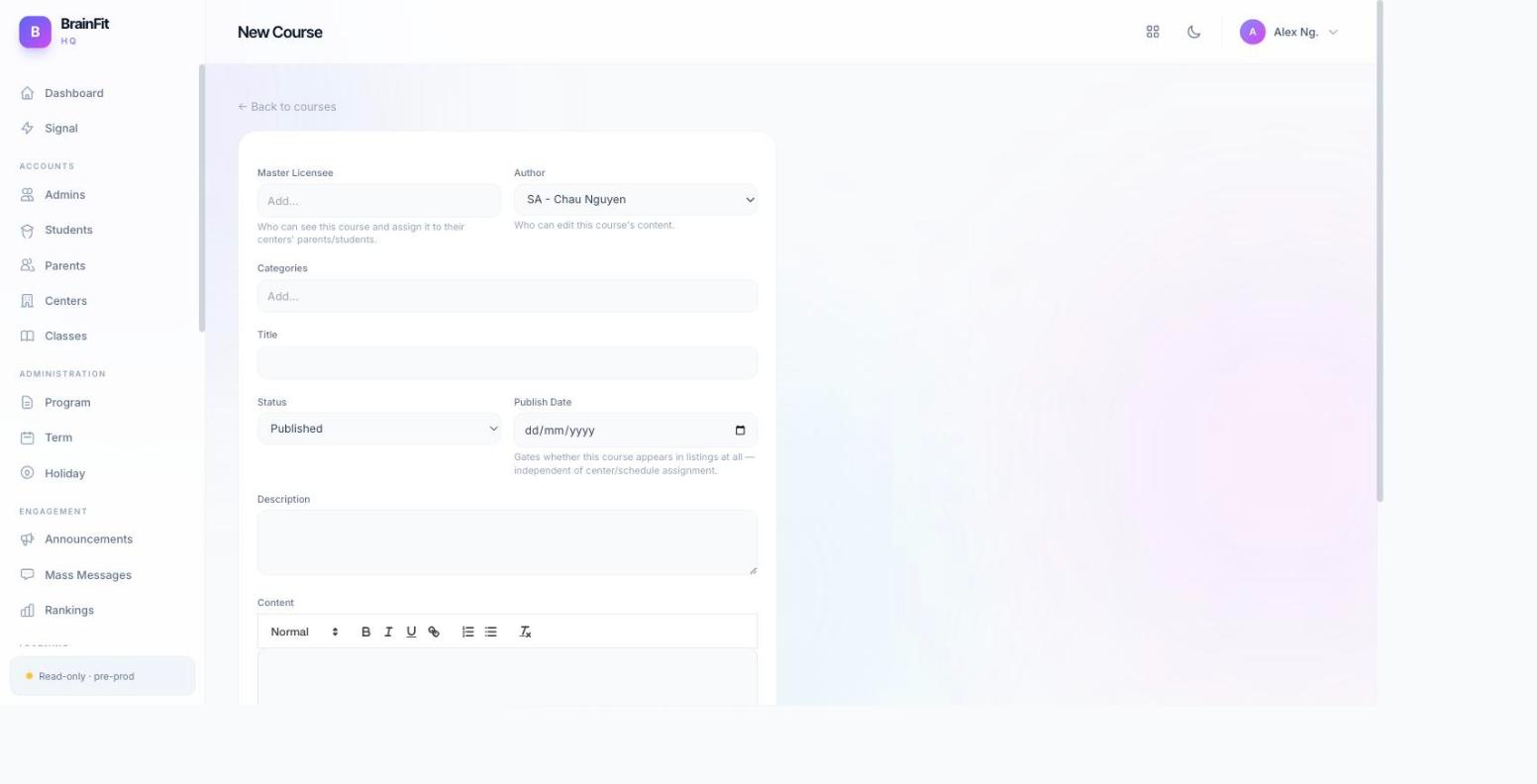
- Click + New Course to open the empty course form. Fill in the course's basic details (title, description, master licensee, etc.) and save.
Edit a course
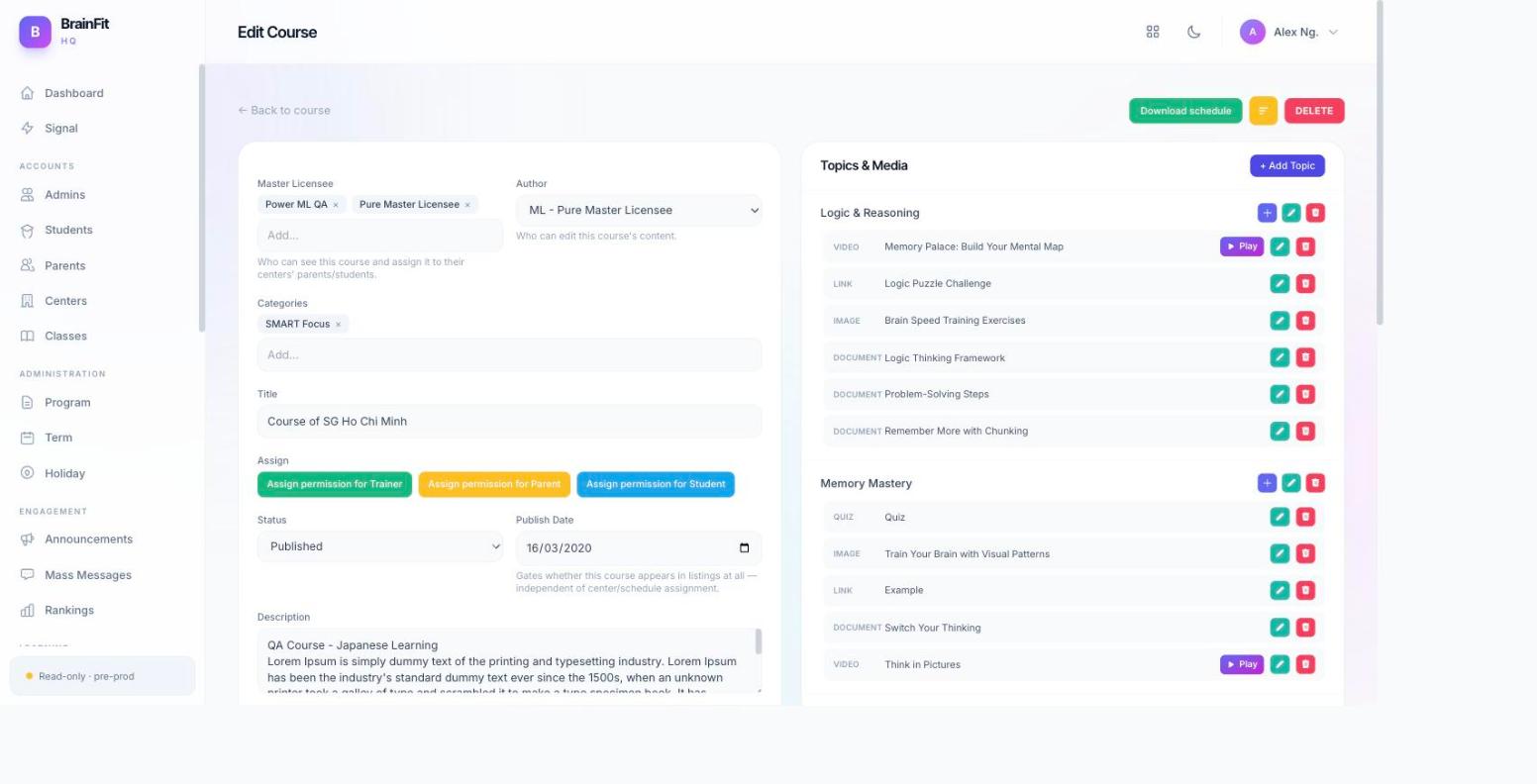
- Click Edit on any course row to open its full edit page — course details on one side, the Topics & Media panel on the other, listing every topic and its attached media items.
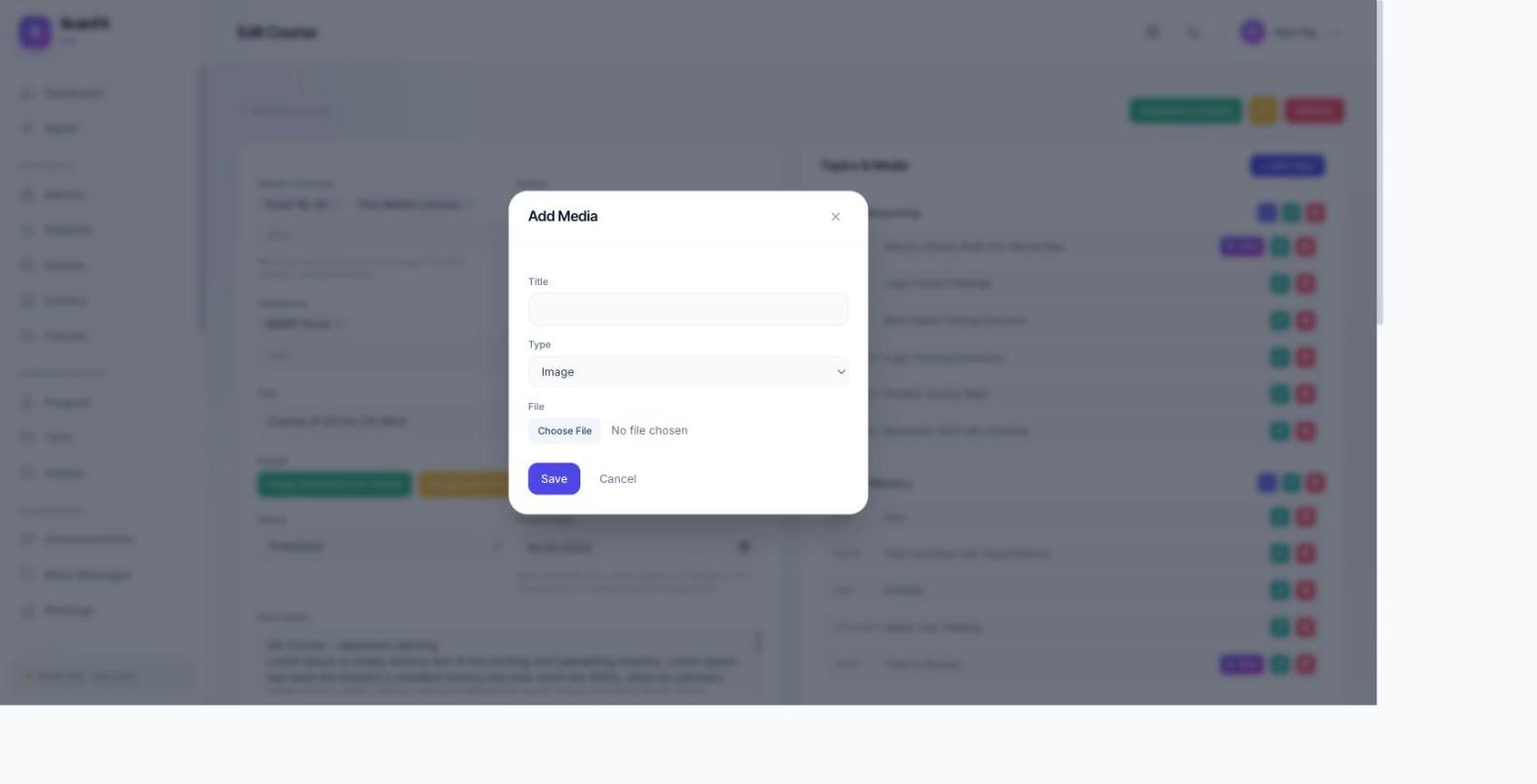
- From the Topics & Media panel, click Add Media on a topic to attach a new media item (document, image, or video). Fill in the Title, Type, and File, then save.
Note:
- The View link previously shown on the course list has been removed for now — course detail viewing isn't in active use yet, so only Edit is shown.